
Tracking lots and serial numbers in Odoo Inventory

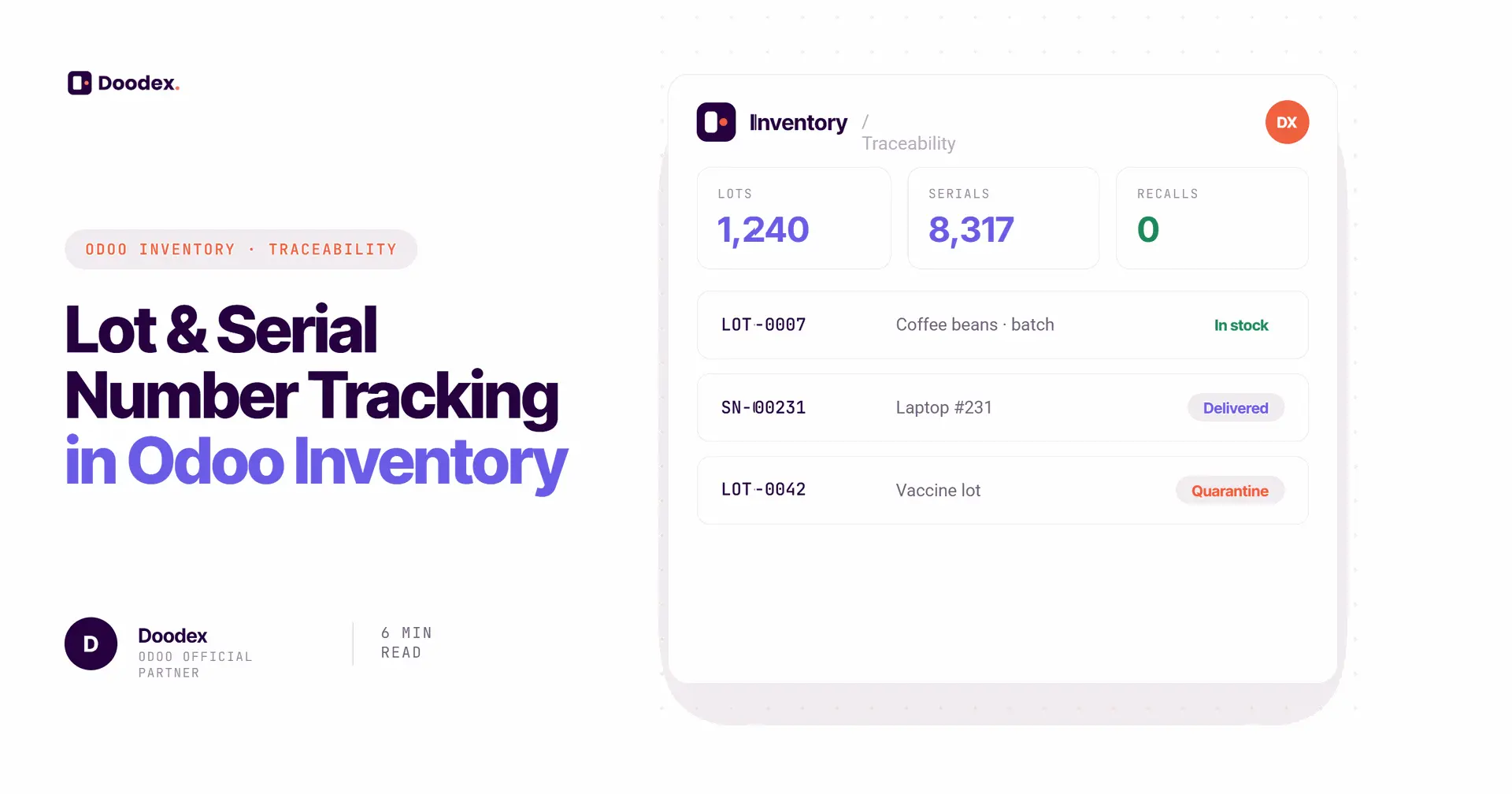
Tracking lots and serial numbers in Odoo gives you full traceability over every item, from receiving products to delivery. A lot groups products made or bought together under one lot number, while serial number tracking assigns a unique serial number to each unit. With lots and serial numbers, you can identify and track products across the supply chain, meet regulatory requirements, and speed up recalls.
This guide explains lot tracking and serial number tracking, how to enable the feature in your inventory module, how to create new numbers during a receipt, and how those numbers show on delivery orders and delivery slips.
session
Book a free traceability session
See how Odoo lot and serial tracking fits your products — from receipts to recalls — in a free session with a Doodex specialist.
Book a free sessioncontents
- 01Choosing a lot serial number method
- 02Lot tracking explained
- 03Serial number tracking for individual products
- 04Benefits of tracking lots and serial numbers
- 05How to enable lots and serial numbers
- 06How to create new numbers on a receipt
- 07Receiving products and detailed operations
- 08Numbers on delivery orders
- 09Lot numbers on delivery slips
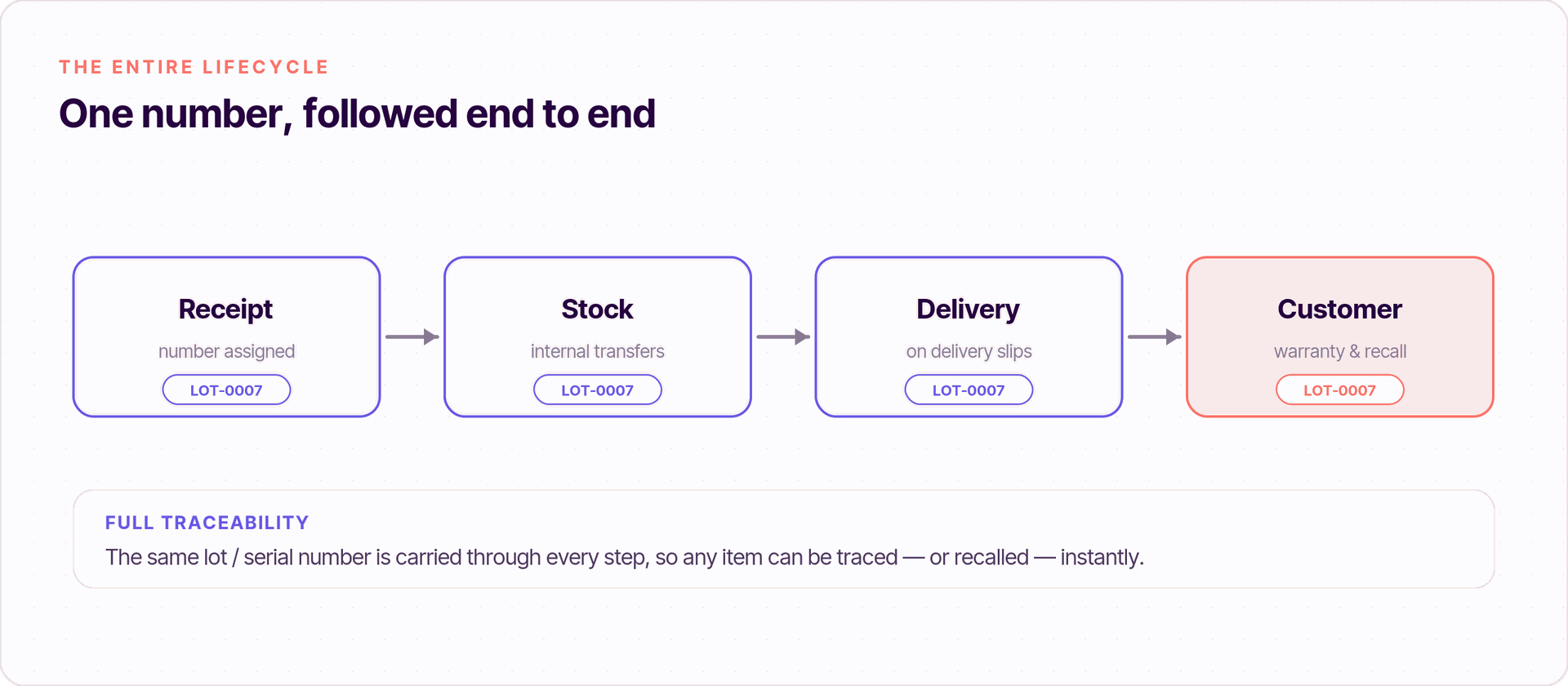
- 10Tracking the entire lifecycle
- 11Industry use cases
- →Conclusion
Choosing a lot serial number method
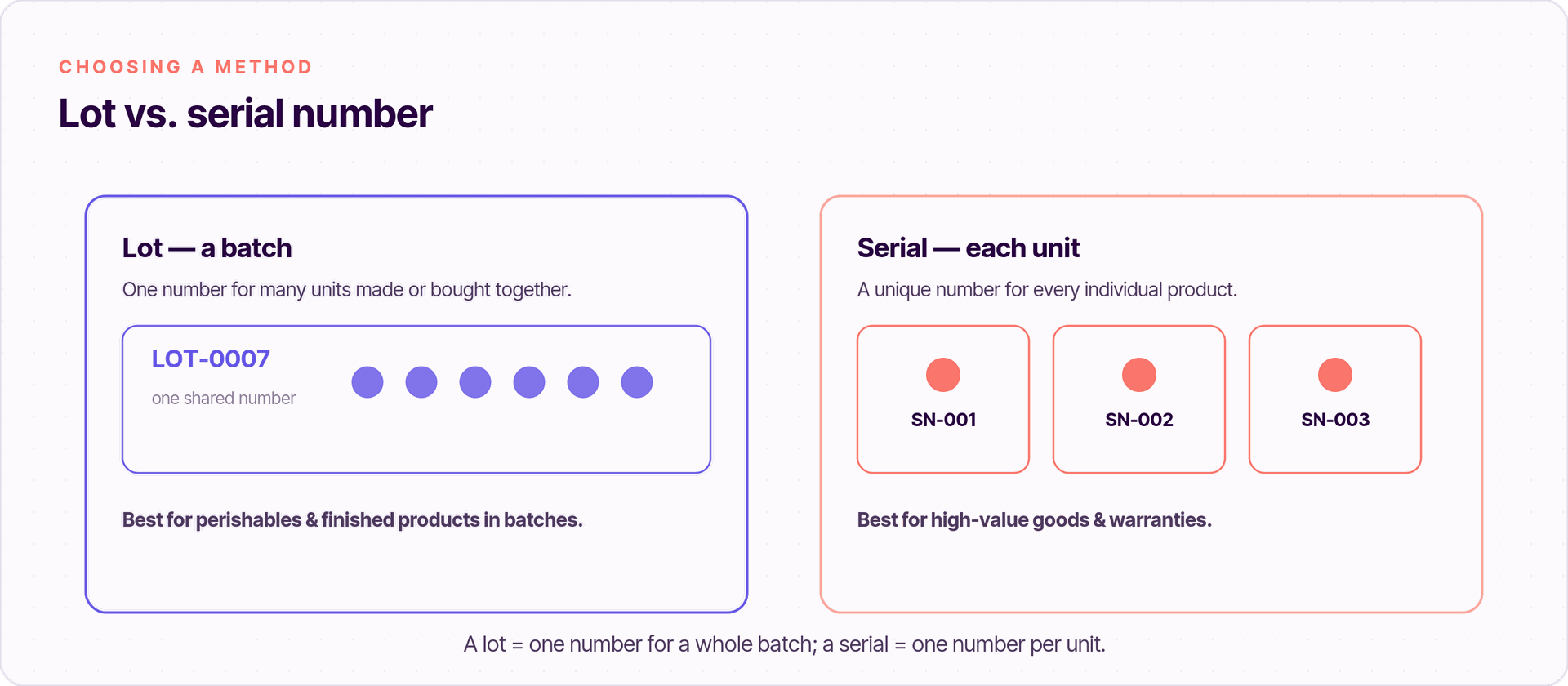
Odoo gives you two ways to identify and follow stock: lots and serial numbers. Both attach a lot or serial number to your goods so you can trace them, but they work at a different level. Picking the right lot serial number method depends on what you sell and the level of product traceability you need.
In short, a lot covers a group of items, and a serial covers one item. You set the method per product, so you can use lots for some goods and serials for others. Choosing well from the start keeps your tracking clean across the whole supply chain.
Lot tracking explained
Lot tracking groups products that were produced or purchased together into a batch. Each batch gets one batch number (a lot number), so you can group and manage those goods together through their life. This is ideal for perishable goods or any finished products that may need a recall, because you can pull a whole batch at once.
Serial number tracking for individual products
Serial number tracking assigns a unique identifier to each unit — so it works at the level of individual products, not batches. A unique serial number is perfect for high-value items, warranty management, or anything that needs precise tracking from production to the customer. As one of the two ways to track products, serials give the most detailed history.
Benefits of tracking lots and serial numbers
- Quality control. Find issues at a stage of the supply chain and recall a defective lot fast.
- Full traceability. Keep detailed records of origin and history — key for compliance and regulatory requirements.
- Inventory accuracy. Track specific items and batches in stock, reducing errors and losses.
- Customer satisfaction. Faster returns, warranties, and support thanks to precise tracking.
How to enable lots and serial numbers
First, turn the feature on. Open the inventory module, go to Configuration > Settings, and under the traceability section enable the "Lots & Serial Numbers" option. This must be on before any product traceability actions work.
You also have the ability to control it per operation: in the Inventory app configuration, operation types can each allow you to create new numbers or use existing ones during receipts and deliveries. Next, set the method on each product: go to the Inventory app Products page, open a product form, and on the Inventory tab use the drop-down menu in the Tracking field to choose "By Lots" or "By Unique Serial Number" for individual products. If the field is empty, click the blank field and pick the option.
How to create new numbers on a receipt
When receiving products, numbers can be assigned or generated for newly received or manufactured items. Here is the flow to create them:
- Go to Inventory > Operations > Receipts and create a new receipt.
- Use the drop-down menu to select the product first, then add the quantity.
- When the move line is generated, click the blank field in the Lot/Serial column to enter a number.
- After a number has been created, it is assigned to the desired item; the internal reference can be edited if needed.
Tip: for a batch, one lot or serial covers the whole line; for serials, each unit needs its own. The number is assigned to the desired unit so traceability stays exact.
Free session
Need help enabling lot & serial tracking?
Book a free working session with a Doodex Odoo specialist and get traceability configured for your exact products and operations.
Book a meetingReceiving products and detailed operations
For finer control, open the detailed operations view on a transfer. This is where you assign traceability data line by line when moving stock between any location. If lot or serial assignment is still required, Odoo shows a pop-up window asking you to complete it before validation.
Numbers on delivery orders
The same logic applies on the way out. Go to Inventory > Operations > Delivery Orders, create a transfer, and add products. Assign the relevant numbers on delivery before you validate. If the goods come from a sales order, the assignment happens during the shipping flow, so each sales delivery keeps its trace.
Lot numbers on delivery slips
You can also print the lot number or serial on paperwork. When the option is enabled, those identifiers appear on your delivery slips, so the customer receives a document that matches exactly what shipped. This closes the loop on product traceability outside your own system.
Tracking the entire lifecycle
To track products in Odoo end to end, go to Inventory > Reporting > Lot/Serial Numbers — the Lots/Serial Numbers report. There you get a master list of every number, can review received or manufactured batches, group records in list view, and use the smart button to view related traceability records.
Open any serial and you can see the entire lifecycle of that item — every move it made. The smart button jumps straight to the linked product or traceability record, so you see the entire lifecycle in a couple of clicks. This is how numbers can be assigned early and still tell the full story months later.
Industry use cases
- Food and beverage. Lot tracking manages batches of perishable goods with a lot number or batch number, so companies can trace and recall any contaminated lot fast and keep consumers safe.
- Electronics and high-value goods. A unique serial number supports each item from production to the customer, giving manufacturers detailed support and maintenance records — one of the two ways to identify and follow stock.
- Pharmaceuticals. Detailed tracking of drug batches helps meet regulatory requirements across the entire lifecycle, which is critical for quality control and compliance.
Conclusion
Tracking lots and serial numbers in Odoo is a powerful way to improve inventory accuracy, quality control, and compliance. By choosing the right method, enabling it in the inventory app configuration, and assigning numbers from receiving products through to delivery orders, you get full traceability with very little extra effort. Whether you handle perishables, high-value goods, or regulated products, Odoo gives you the tools to identify and track products with confidence.
If you want help setting up lot and serial tracking for your business, Doodex can configure it end to end — so every item is traceable across your whole supply chain.
Your Odoo partner
Want full traceability across your supply chain?
Doodex configures Odoo lot and serial tracking end to end - from setup to delivery slips and recall-ready reports. Talk to our team to get started.
Talk to a Doodex expertanswered
What is the difference between a lot and a serial number?
A lot number covers a whole batch of items; a unique serial number identifies one unit. Use lots for batches, serials for individual products.
How do I turn tracking on?
In the inventory module, open Configuration > Settings and enable "Lots & Serial Numbers" under the traceability section, then set the method on each product form.
Can numbers print on customer documents?
Yes. When enabled, the lot or serial number appears on delivery slips tied to your delivery orders.
How do I see an item's full history?
Open the Lot/Serial report and use the smart button to view its traceability — you see the entire lifecycle of that product.